The editor
This page covers the editor layout — the tool rail, view modes, the panel stack (Outliner, Properties, Order, Document, Check), the selection toolbar, and the stitch simulator.
The editor is where you draw, set stitch properties, preview the sew, and export. Everything happens on one screen: a top bar across the top, a tool rail and the Outliner down the left, the canvas in the middle, and the inspector panel on the right.
Press ? anywhere in the editor to open the live keyboard-shortcut reference, or jump to the full shortcut reference.
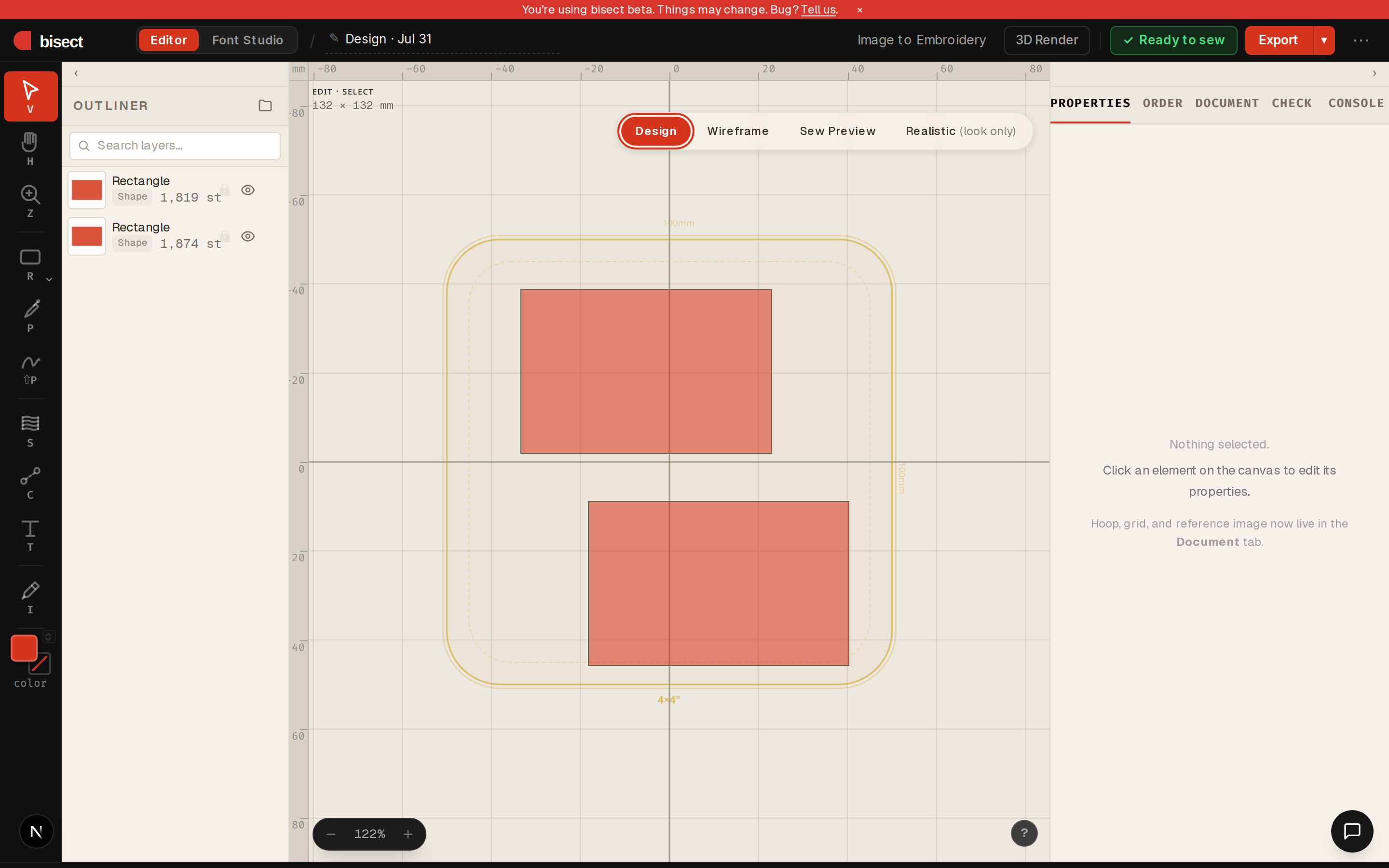
Layout at a glance
| Region | What lives there |
|---|---|
| Top bar | Brand mark, an Editor / Font Studio switch, project name (click to rename), save status, Image to Embroidery, 3D Render, Export, and a ⋯ overflow menu (New, Open, Place image, Regenerate stitches, Manual, Help, Sign out). |
| Left tool rail | The drawing and editing tools, plus the active fill/border color swatches. |
| Outliner rail | The scene tree of every element, docked just right of the tool rail. |
| Canvas | Your hoop, the design, and a floating Design / Wireframe / Sew Preview / Realistic view pill at the top-right. |
| Right panel | The tabbed inspector: Properties, Order, Document, Check, Console. |
The project name autosaves as you work — the indicator next to it reads Saving…, Saved, or Save failed. Cmd/Ctrl+S forces a save.
Tools
The left rail holds the drawing tools, each with a one-key shortcut shown under its icon. Hold Space at any time for a temporary pan, no matter which tool is active.

The icons appear in this order on the rail (see the image above). Each tool:
| Tool | Shortcut | What it does |
|---|---|---|
| Select | V |
Click to select, drag to move. Corner handles scale, the handle above the top edge rotates. Shift-click adds to the selection. |
| Hand | H |
Pan the canvas — nothing on it moves. (Holding Space does the same from any tool.) |
| Zoom | Z |
Click to zoom in, Alt-click to zoom out, or drag a marquee to zoom to a region. |
| Rectangle | R |
Drag a rectangle. Shift = square, Alt = from center. Lands with the active fill type and color. The small ▾ beside it opens the other primitives — Ellipse (O), Heart, and Star. |
| Pen | P |
Click to place anchors, click-drag for bézier handles. Enter finishes, Esc cancels. Stored as an editable spline. |
| Freehand | ⇧P |
Drag an organic line; it's smoothed into a spline. While active, L / M / H sub-buttons set light, medium, or heavy smoothing. |
| Satin Column | S |
Draws a column of zig-zag stitches between two parallel rails, with optional rungs for direction. The classic look for lettering and borders. |
| Connect | C |
Chain one element to the next with a travel run — Walk (buried running), Jump, or Trim — so you author the move between objects instead of leaving it to the auto-router. |
| Type | T |
Places a text element you then type into. Choose Native (system fonts, converted to fills) or Design (purpose-built embroidery fonts). |
| Eyedropper | I |
Click anywhere on the canvas to sample that pixel's color into the active fill — handy for matching imported artwork. |
The Satin Column, Type, and Pen / Freehand tools all have richer behavior than fits in one line. See Drawing & stitch types for density, underlay, rungs, and font details.
At the bottom of the rail, two overlapping swatches show the active fill and border colors that new shapes inherit. Click either to open its color picker (which also carries the fill-type / outline-type pulldown), or use the small swap arrow to exchange them.
Cutting holes
The old Hole tool has been retired from the rail. To knock a hole in a shape now, either toggle a shape sitting on top into a cutter (it subtracts from whatever is beneath it) or use a Subtract boolean. Either way the cutout is resolved at the design level and stays live and editable.
Place Image — a top-bar action
Reference images aren't created from the tool rail. Use Place image to trace in the top bar's ⋯ overflow menu (or ⇧⌘P) to load a picture to trace over. It's sized to fit your hoop and dropped at the hoop center, then shows up as a pinned Reference image row at the top of the Outliner. Reference images are for tracing only — they never export and aren't part of the stitch order. (To turn an image into stitches, use Image to Embroidery instead.)
View modes
A floating pill at the top-right of the canvas switches what the canvas draws. Click a segment or press its number key:
| Mode | Key | Shows |
|---|---|---|
| Design | 1 |
Clean shapes only — no stitches. What you drew. |
| Wireframe | W |
Outlines only, no fill — satins draw as rails and rungs. The structure view; it also lets you click through overlapping shapes. |
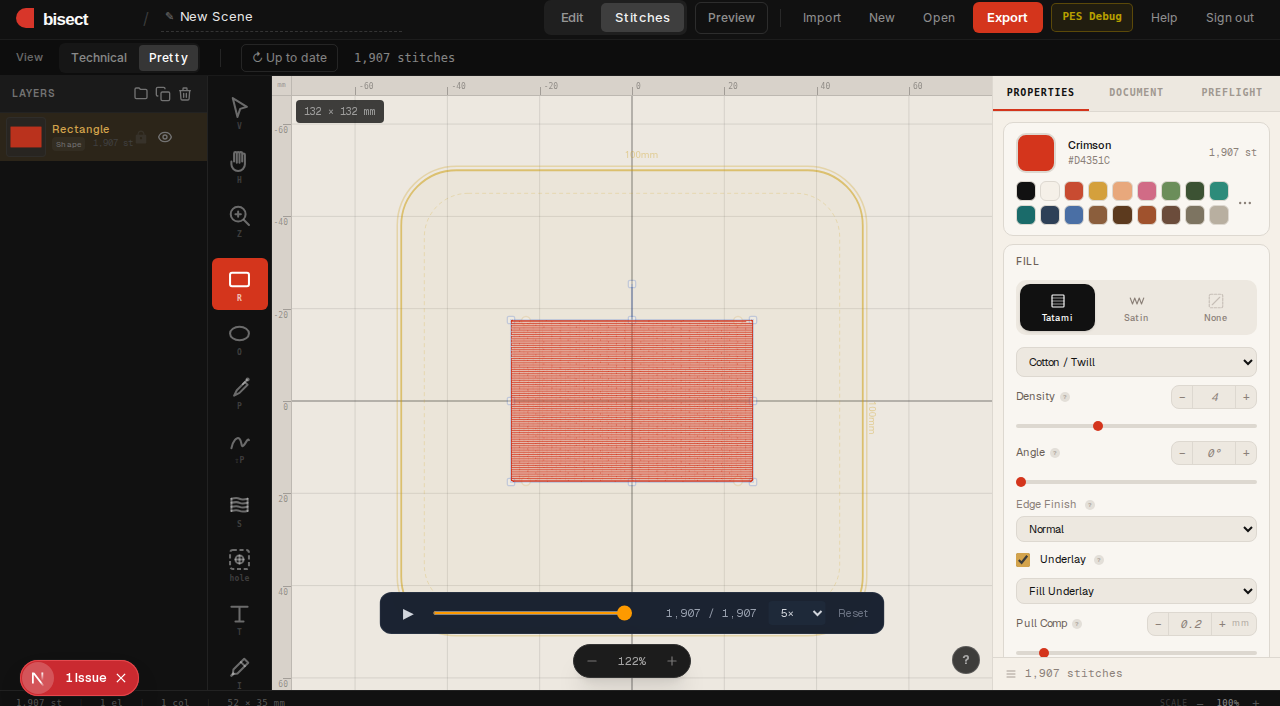
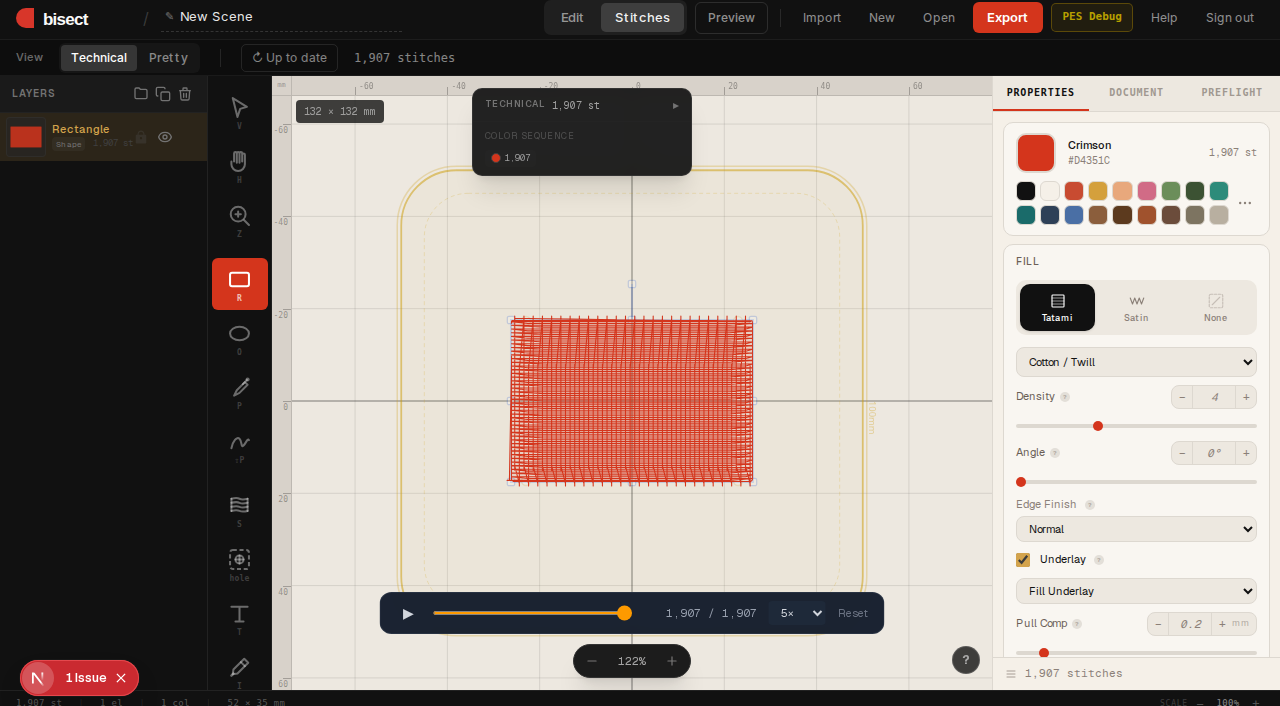
| Sew Preview | 2 |
The exact Python stitch plan — fills, outlines, underlay, routing, travel, jumps, trims, and sew order. This is the one source of stitch truth, and it's what gets exported. |
| Realistic | 4 |
A photo-real thread preview rendered right on the canvas — fills and satin shaded like real sheen-y thread. Appearance only, not the exported stitches. |
Switching into Sew Preview or Realistic drops a sticky drawing tool back to Select and recompiles if the preview is stale, so the view is never empty.
The Realistic pill ships on for everyone. If you don't see it, it's been disabled for your build (the
NEXT_PUBLIC_REALISTIC_GLkill switch) — the other three modes are always present.
3D Render
The 3D Render button in the top bar opens a separate window with a photo-real thread simulation of the design. Each click starts a fresh session and compiles the latest stitches before showing them, so the render always matches the canvas.
Panels
The panels are split across two rails: the Outliner is its own rail just right of the tools, and the inspector on the right is a tabbed panel with Properties, Order, Document, Check, and Console tabs.
| Panel | What it's for |
|---|---|
| Outliner | The scene tree of every element, with folders, color grouping, lock, visibility, rename, badges, stitch counts, and drag-to-reorder. A search box at the top filters rows by name. |
| Properties | Stitch and transform settings for the selected element(s): Fill, Outline, Entry/Exit, Transform, Advanced. |
| Order | The stitch (sew) order, grouped into machine color blocks. |
| Document | Hoop, grid, snap, and reference-image settings (shown when nothing is selected). |
| Check | Preflight — a live list of warnings and stats about whether the design will sew and export cleanly. |
| Console | The shared output log — engine errors, warnings, and status messages. |
Outliner
The Outliner is the scene tree — every element in sew order, top to bottom.
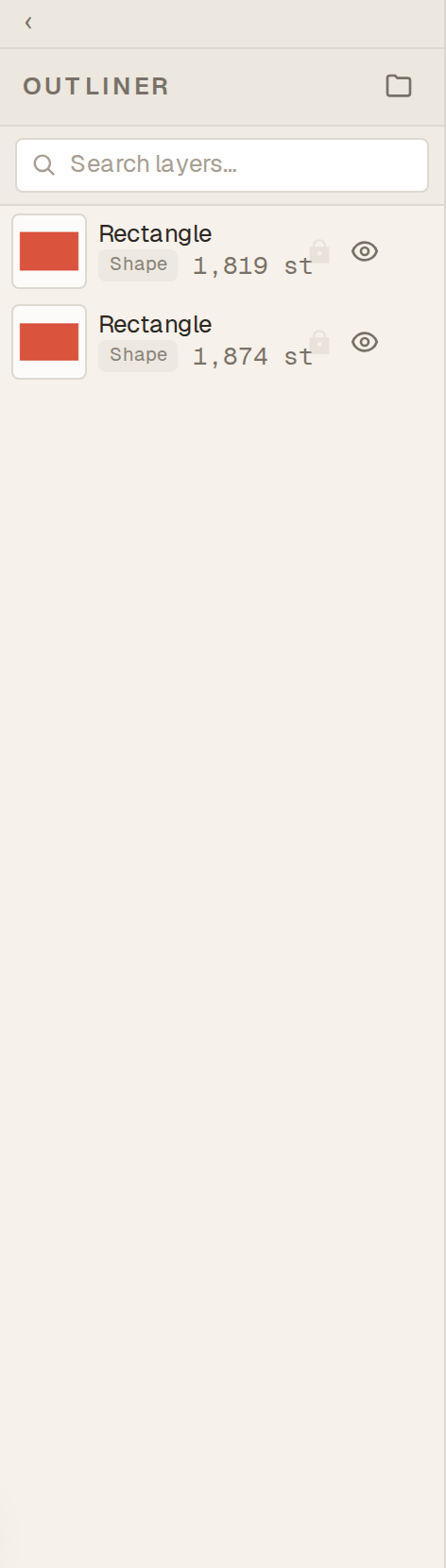
- Folders / groups — nest elements into folders (toolbar button at the top of the panel). Groups expand and collapse, and the tree order is the stitch order for grouped content.
- Color grouping — when a flat (ungrouped) design has lots of elements sharing colors, the Outliner auto-inserts collapsible color headers so you can fold a whole color away. (Designs with real folders opt out — the tree is the organization there.)
- Lock / visibility — per-row toggles. Locked rows dim and can't be edited on the canvas; hidden rows don't render or stitch.
- Inline rename — double-click a row's name to rename it. Generic names get an auto-generated label from their color and stitch type.
- Source badges — small tags mark where an element came from: SVG (imported), Spline (pen/freehand), Shape (drawn primitive), Traced (vectorized). Each row also shows its fill/outline type and live stitch count (
st). - Drag to reorder — drag a row above, below, or inside a folder. Reordering changes sew order.
A pinned Reference image row appears at the very top whenever a reference image is loaded, with its own lock and visibility toggles.
Properties
Select an element and the Properties tab fills with its settings. Multi-select edits them all at once (mixed values are flagged), and an Align bar appears for two or more elements. The sections:
- Fill — fill type (Tatami, Parallel, Spiral, Drift, Even Tatami, Single Path, or None), Density, Stagger, Fill angle, underlay on/off and type, and pull/push compensation.
- Outline — outline type (Border, Running, Bean, Triple, Satin, Track, Chain, or None) and its per-type controls (width, corners, stitch length, spacing, loop size, overlap…).
- Entry / Exit — the start and end points of the element, so you control where the needle enters and leaves (single selection).
- Transform — X / Y position, width / height (with optional aspect lock), rotation, scale, opacity, and corner radius.
- Advanced — min / max stitch length, trim-after-element, and the Overlap mode that governs how this element clips against ones above it.
Text and satin elements swap in their own dedicated panels (see Drawing & stitch types). When nothing is selected, this tab shows an empty-state hint pointing you to the Document tab for hoop and grid settings, or — with a drawing tool active — the defaults for the next shape you'll draw.
Order
The Order tab is the stitch-order editor (a different axis from the Outliner's Z-order). Elements are shown grouped into the color blocks the machine will see, each row numbered in sew sequence with its stitch count. The header tells you how many color blocks the design has.
- Optimize order — asks the engine for its travel-optimized order (scoped per glyph/folder, pinned subtrees untouched) and writes it back to the tree. One undoable step.
- Minimize colors — reorders so same-color runs sew together, cutting thread changes while preserving first-appearance layering. It tells you the before→after block count (or "already minimal" when nothing could be grouped).
- Sew-order numbers on canvas — a labeled toggle (it reads · on / · off) that shows or hides the on-canvas stitch-order overlay: numbered badges plus travel links between elements.
- Connector summary — when the design has connectors, a line shows how many there are and how many are stale, with Clear stale (drop only the broken ones) and Clear all (a two-step, undoable wipe). Stale connectors are also listed individually with a one-click fix for each.
- Route N selected / Re-stack in click order — appear when two or more elements are selected. Route chains them into one continuous path with running connectors so same-color travel is buried instead of trimmed; Re-stack just re-sequences them in the order you clicked them (no connectors).
Each row also has hover ▲ / ▼ nudges to move an object one slot earlier or later, and you can drag any row to change the sew order by hand. (Z-order — what covers what — lives in the Outliner; this panel is purely the order the machine stitches.)
Document
Shown when nothing is selected. It collects the document-level settings:
- Hoop — pick a hoop size (or No hoop), and Fit design to hoop.
- View — toggle the Grid and Snap to grid.
- Reference Image — Place image to trace (or select an existing reference to edit it). Reference images can be dragged onto the canvas and never export.
Check (Preflight)
The Check tab runs a live preflight against the engine and your design. A badge at the top reads ready, blocked, checking…, updating…, engine off, or idle. Below it:
- Summary stats — stitch count, colors and thread changes, jumps, trims, thread length, run-time estimate, design size and center.
- Checklist — the headline result: a green Ready to export when nothing's wrong, or a red N things to fix before export with the plain-language list. These are the issues that actually matter at export time: shapes outside the hoop, objects with no stitches, very long (>12 mm) or very tiny (<0.3 mm) stitches, broken connectors (pointing at a deleted shape, or joining shapes that are no longer next to each other in the sew order), cross-color or exposed running connectors, draft (unpinned) connectors, and stale entry/exit points. No hoop chosen shows as an info note.
- Thread sequence — the actual color-block run order, with an Auto-sort shortcut when same-color layers can be grouped to save thread changes.
- Per-element breakdown — stitch count per element.
- Checks — extra heuristics and tips, ranked as error (●), warning (▲), or info (○): too-low or too-high density, large fills missing underlay, excessive jumps or trims, oversized borders, the exact hoop overage in mm, plus any warnings the engine itself reports.
Errors block export. When you hit Export with an error-level issue standing, a Before you export dialog lists exactly what to fix — and there's no "Export anyway" until the errors are cleared. Warnings and info notes are surfaced but never block; you can review them and continue.
The selection toolbar
Select an element and a small floating toolbar appears just above it — the fastest way to reach the on-canvas edit modes. Its buttons change with what you've selected; click one to toggle that mode (it highlights while active), and press Esc to exit.
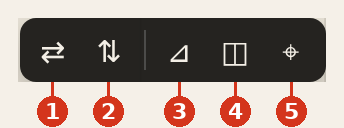
| # | Button | Shortcut | What it does |
|---|---|---|---|
| 1 | Mirror horizontal | Shift+H |
Flip the selection left ↔ right. Works on any selection, including multi-select. |
| 2 | Mirror vertical | Shift+J |
Flip the selection top ↔ bottom. |
| 3 | Fill angle | A |
Drag a handle on the canvas to aim the fill's stitch rows. Shows for a single fill element. |
| 4 | Lattice / deform | L |
Bend the shape with a deform cage. Shows for a single primitive or closed spline. |
| 5 | Edit points | Enter |
Drag anchor points and bézier handles directly. Shows for a single path or satin column. |
Two more buttons appear only for specific selections:
- Edit curve (
Enter) — for a single open spline. - Insert rung — on a satin column, drops a rung into the largest gap and jumps into rung editing (see Satin column).
Primitives (rectangle, ellipse) auto-convert to an editable path the instant you enter point editing, so you never lose their geometry. The bar hides itself while you're actively scaling or rotating.
Stitch simulator
A scrubber sits along the bottom of the canvas whenever stitches are showing. By default it shows the whole, finished design; the controls let you walk the sew order from the beginning:
- ⏮ Rewind jumps to the very start — nothing shown (zero stitches).
- ▶ / ⏸ Play / pause animates the sew from start to finish, building the design up one needle at a time. (Pressing play from the finished view rewinds to the start first.)
- The timeline slider runs 0 = beginning on the left to max = finished on the right; drag it to scrub to any point in the sew order. The counter reads current / total stitches.
- A speed pulldown (1× / 5× / 20×) sets playback rate.
- All snaps back to the whole, finished design.
It's the best way to catch stitch-order surprises — a fill jumping across the design before an outline sews, say — before you commit to thread.
Next step
Read Drawing & stitch types to learn what each stitch type is for and how to draw satin and text.
See also: Getting started · Importing artwork · Exporting · Keyboard shortcuts